ddrescue shenanigans
Recovering a Failing WD My Passport with GNU ddrescue
I recently remembered that I have an old 1 TB WD My Passport Ultra external drive that stopped working.
At first it looked bad: the drive would not mount and diskutil list would hang while it was connected.
The drive spun up normally, the LED blinked, and macOS asked whether I wanted to allow the USB connection.
That was enough to start investigating.
Finding out what still works
The first useful check was:
ioreg -p IOUSB -l -w 0
macOS could see the USB device:
My Passport 0741
Western Digital
The USB bridge itself was alive.
The more interesting check was:
ioreg -r -c IOBlockStorageDevice -l
This showed that macOS could actually see the disk behind the USB bridge:
WD My Passport 0741 Media

BSD Name = disk4
Size = 1000170586112
Content = GUID_partition_scheme
It could even enumerate the partitions:
disk4s1    EFI System Partition
disk4s2    Basic data partition
So this was not a completely dead disk.
The problem was that normal disk operations were extremely slow or would hang completely. For example:
diskutil list
would block indefinitely while the failing drive was attached and immediately continue after unplugging it.
That was a pretty strong indication that the storage stack was waiting for the disk to respond.
At this point I deliberately avoided:
diskutil repairDisk
fsck
and macOS Disk Utility First Aid.
If a drive is physically failing, filesystem repair is not the first thing I want writing to it or repeatedly reading problematic areas. The priority is getting a sector-level copy.
I connected another WD My Passport, this time a 2 TB model that I was willing to completely overwrite.
With only the destination connected:
diskutil list
showed:
/dev/disk4 (external, physical):
   0: GUID_partition_scheme
   1: EFI
   2: Apple_APFS Container disk5

/dev/disk5 (synthesized):
   0: APFS Container Scheme
   1: APFS Volume backup-arwen
The important detail here is that the physical disk was /dev/disk4. The synthesized APFS container was not the device I wanted to clone onto.
After connecting the failing drive as well, I used ioreg instead of diskutil, because diskutil frequently hung:
ioreg -r -c IOMedia -l | grep -E 'WD My Passport|BSD Name|Size|Whole'
The final mapping was:
WD My Passport 0741
BSD Name = disk4
Size = 1000170586112

WD My Passport 0827
BSD Name = disk5
Size = 2000365289472
So:
SOURCE      /dev/rdisk4    1 TB    WD My Passport 0741
DESTINATION /dev/rdisk5    2 TB    WD My Passport 0827
Checking this twice before running anything destructive is a very good idea.
The destination disk had to be unmounted first:
diskutil unmountDisk /dev/disk5
macOS also initially refused raw access:
ddrescue: /dev/rdisk5: Can't open output file: Operation not permitted
Giving my terminal application Full Disk Access under:
System Settings
→ Privacy & Security
→ Full Disk Access
fixed that.
Trying to clone it
The initial pass was:
sudo ddrescue -f -n /dev/rdisk4 /dev/rdisk5 ~/passport.map
The important options were:
-f    allow writing to the destination device
-n    skip the expensive scraping/retry phase for now
The mapfile:
~/passport.map
keeps track of what has already been copied, skipped or failed, so the recovery can be resumed.
Initially things looked good:
current rate: 70778 kB/s
bad-sector: 0 B
read errors: 0
Then performance collapsed:
current rate: 153 kB/s
read errors: 1
non-trimmed: 65536 B
and eventually:
current rate: 0 B/s
time since last successful read: 1m 14s
The drive was effectively stuck.
I restarted ddrescue with:
sudo ddrescue -f -n -O -K 1MiB \
  /dev/rdisk4 /dev/rdisk5 ~/passport.map
-O reopens the input after errors, while -K 1MiB lets ddrescue skip ahead more aggressively instead of spending too much time around a bad area.
Another strange thing was:
non-tried: 9223 PB
Clearly not correct for a 1 TB disk.
Because ioreg had already given me the exact disk size:
1000170586112
I passed that explicitly:
sudo ddrescue -f -n -O -K 1MiB \
  -s 1000170586112 \
  /dev/rdisk4 /dev/rdisk5 ~/passport.map
Now the output made sense:
non-tried: 1000 GB
pct rescued: 0.01%
But the drive was still getting stuck.
I also tried working backwards:
sudo ddrescue -f -n -R -O -K 1MiB \
  -s 1000170586112 \
  /dev/rdisk4 /dev/rdisk5 ~/passport.map
That stalled too, so I stopped trying to clone the whole disk sequentially.
Hunting for readable regions
The next experiment was much more useful.
I explicitly selected a region near the end of the disk:
sudo ddrescue -f -n -R -O -K 1MiB \
  -i 900000000000 \
  -s 100170586112 \
  /dev/rdisk4 /dev/rdisk5 ~/passport.map
This defines approximately:
900 GB → 1000 GB
Because of -R, ddrescue started from the end.
And suddenly the disk was reading again:
current rate: 14876 kB/s
average rate: 12104 kB/s
read errors: 0
A little later it hit another bad area and stalled.
That changed the diagnosis. The drive was not simply bad from one point onward. Some LBA ranges were readable and others were effectively dead.
I started testing smaller regions:
sudo ddrescue -f -n -R -O -K 1MiB \
  -i 200000000000 \
  -s 10000000000 \
  /dev/rdisk4 /dev/rdisk5 ~/passport.map
The 200–210 GB region initially read nicely:
current rate: ~13 MB/s
read errors: 0
time since last successful read: 0s
The 190–200 GB region was also readable, while 180–190 GB was not.
Other tests showed a similar pattern:
~0 GB          problematic
180–190 GB     bad
190–210 GB     good
210–220 GB     partly readable
300 GB area    partly readable
400–500 GB     problematic
600 GB area    partly readable
800–900 GB     bad
900–1000 GB    partly readable
Some apparently healthy regions would read at around 12–13 MB/s for a few hundred megabytes and then abruptly stop.
Typical failure looked like:
current rate: 0 B/s
rescued: unchanged
time since last successful read: 2m+
At that point I would stop the run with Ctrl-C rather than let the drive sit there retrying.
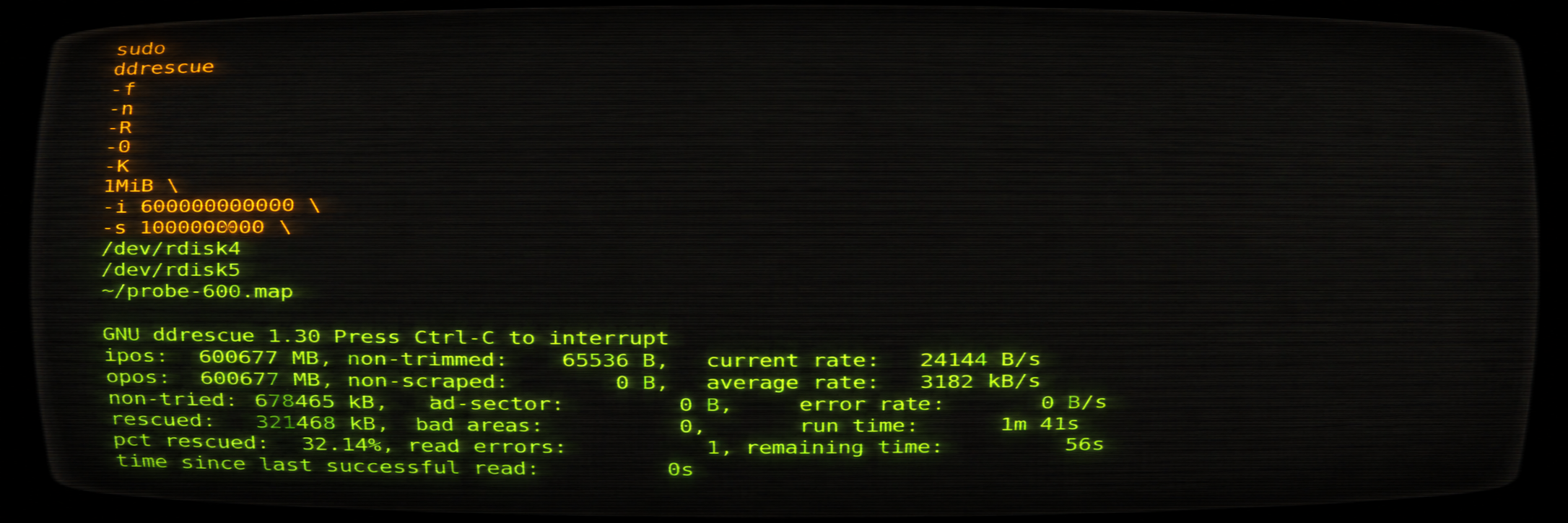
Eventually I reduced the test windows to 1 GB:
sudo ddrescue -f -n -R -O -K 1MiB \
  -i 600000000000 \
  -s 1000000000 \
  /dev/rdisk4 /dev/rdisk5 ~/probe-600.map
That region initially worked:
current rate: 12910 kB/s
average rate: 12785 kB/s
rescued: 319633 kB
read errors: 0
Then it stalled again.
The same pattern appeared repeatedly across widely separated parts of the disk.
Calling it
This does not look like ordinary filesystem corruption.
The drive:
- spins normally
- identifies correctly
- exposes the correct size
- exposes its GPT and partitions
- reads some regions at normal speed
- becomes completely unresponsive in other regions
- sometimes reads a few hundred MB before stalling again
On a spinning disk, that is consistent with physical media or head-related failure.
It could be a weak head, damaged platter surface, firmware repeatedly retrying marginal sectors, or some combination of those. Logical block addresses do not map neatly to an exact physical location on modern disks, so trying to reverse-engineer the platter geometry from these offsets would be speculation.
The important point is simpler: the disk is physically unhealthy.
I eventually stopped.
ddrescue is excellent, but it cannot fix mechanical problems. Repeatedly forcing an unstable drive through bad areas can potentially make the situation worse, especially if the data is important enough to justify professional recovery.
For replaceable data I would probably continue experimenting.
For irreplaceable data, knowing when to stop is part of the recovery process too.